Xupeng's blog

圆外之大,心向往之

Pulseaudio is very cool!

I finally moved to pulseaudio after having used alsa/esd for years, pulseauido has been there for many years, but I didn’t really learn something about it, I should have tried it if I knew it’s so cool! On my Debian unstable, I installed pulseaudio this way:
apt-get install pulseaudio libao2 paprefs libpulse-mainloop-glib0 \
    pulseaudio-module-jack pavucontrol alsaplayer-alsa pulseaudio-module-hal \
    pulseaudio-module-x11 pulseaudio-module-lirc pulseaudio-utils \
    pulseaudio-module-zeroconf libasound2-plugins padevchooser paman \
    pulseaudio-module-gconf libgconfmm-2.6-1c2 libpulse-browse0 pavumeter \
    libglademm-2.4-1c2a pulseaudio-esound-compat libpulse0 libpulse-dev
The next step is to make sure the desktop user is in these groups: audio, pulse, pulse-access and pulse-rt, for me, my username is “xupeng”, so the following commands make user “xupeng” belong to these groups:
gpasswd -a xupeng audio
gpasswd -a xupeng pulse
gpasswd -a xupeng pulse-access
gpasswd -a xupeng pulse-rt
Relogin the desktop environment(I use Gnome) is needed for the new groups permission to take effect, can use “id xupeng” to comfirm that the group permissions after re-logging into the desktop environment.
xupeng@hopes:~$ id
uid=1000(xupeng) gid=1000(xupeng)
groups=20(dialout),24(cdrom),25(floppy),29(audio),44(video),46(plugdev),
112(powerdev),115(netdev),118(vboxusers),122(pulse),123(pulse-access),
124(pulse-rt),1000(xupeng),1001(vmware)
Another important thing to make applications using ALSA work is: creating $HOME/.asoundrc with the following settings:
pcm.pulse {
    type pulse
}

ctl.pulse {
    type pulse
}

pcm.!default {
    type pulse
}

ctl.!default {
    type pulse
}
This activate the pulseaudio plugin for alsalibs, and make the pulseaudio driver as default. For applications using esound, adding these to $HOME/.bash_profile:
if [ ! -e /tmp/.esd-${UID} ]; then
        ln -s /tmp/.esd /tmp/.esd-${UID}
fi
Then I went to “System” - “Sound”, set all sound devices to “PulseAudio Sound Server”. There are useful wiki pages to get pulseaudio work well, here are the ones I read as reference:
  • http://www.pulseaudio.org/wiki/PerfectSetup
  • http://rudd-o.com/en/linux-and-free-software/how-pulseaudio-works

Virtualbox stop working after upgrading kernel to 2.6.29

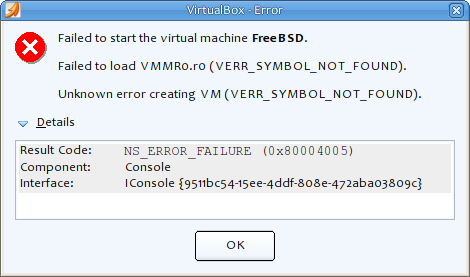
I am using Virtualbox 2.2.0 beta, it worked well before I upgrade my kernel from 2.6.26 to 2.6.29, but it refused to start my vm just after the kernel upgrade: virtualbox-error It said ”VMMR0.r0 is importing g_SUPGlobalInfoPage which we couldn’t find” in its log file, fortunate enough, I got to this page after I searched the web with this error message, there are already many people who met this problem with kernel 2.6.29, the solution is very simple: just uncomment “VBOX_USE_INSERT_PAGE = 1” in vboxdrv’s Makefile, and compile the kernel module for virtualbox again, it should work. For my Debian unstable, the target Makefile sits under /usr/share/virtualbox/src/vboxdrv, so I just uncomment that line, and run “/etc/init.d/vboxdrv setup” to re-compile the kernel module, then everything goes well, I can happlily virtualize my boxes again ;)

Upgrade kernel to 2.6.29 for my debian unstable

Two reasons made me want to upgrade my kernel from 2.6.26 to 2.6.29 for my Debian unstable:
  1. It’s weird that my mobile hard disk make annoying sound even if I “eject” it before I pull out the USB cable, it’s the same sound as the hard disk makes when I power off the computer directly without shutting down the OS.
  2. I want to mount my ext4 volume created by Fedora Core 10, it contains a lot of data I need.
So I download the latest kernel from kernel.org, unzip it to /usr/src
wget http://www.kernel.org/pub/linux/kernel/v2.6/linux-2.6.29.tar.bz2
cd /usr/src
tar xf linux-2.6.29.tar.bz2
ln -s linux-2.6.29 linux
Then configure kernel for my DELL 1420
cd linux
make defconfig
“make defconfig” is very useful for me, I don’t want to compile the tons of kernel modules/drivers I’ll never need for my computer, so I run “make defconfig” first before I configure the kernel by myself, it removed most of the modules/drivers that have no relationship with my hardware. After “make defconfig” completed, I issue “make menuconfig” to run the menu-based kernel configuration interface, actually I only review the configuration to make sure all the necessary drivers needed by computer are selected, and make little changes to it, for example settings about ACPI, network devices(tun, tap etc), and filesystem(Of course I select ext4;), I made most of the drivers builtin instead of plugable modules, my philosophy of compiling kernel is to let it work just as I want it to, I don’t want to spend too much time on it, the current configuration is good enough for me. Then I run “make && make install && make modules_install” to compile the kernel, kernel modules, install the kernel itself and all the compiled kernel modules. I am using LVM, and my / sits on a LVM volume, so I have to generate initrd image for the new kernel:
update-initramfs -c -k 2.6.29
“update-initramfs” is debian’s command to help users generate initramfs image easily, many Linux distributions have their own methods to generate this image, for example Gentoo use genkernel to compile kernel and generate initramfs image automatically, and redhat-based distributions have mkinitrd command to do this if I remember right. “-c” is to tell update-initramfs to create new initramfs image, and “-u” is to update an existing initramfs of course, “-k” is to specify the kernel version to generate initramfs against to, this command will generate file /boot/initrd.img-2.6.29. All the needed files have been compiled and generated, I update /boot/grub/menu.lst to add new grub item for the new kernel:
title Debian 2.6.29
root (hd0,4)
kernel /vmlinuz-2.6.29 root=/dev/mapper/nb-debian64 ro vga=791
initrd /initrd.img-2.6.29
savedefault
Reboot the system and select the new item from grub menu, the new kernel boots smoothly, and I see the new logo for kernel 2.6.29 ;) I am lucky but not that lucky as I thought, my hard disk still make noise when I pull out the USB cable, I have to spend more time on this issue… Now is time for the second reason I upgrade my kernel, unfortunately, error occurs when I mount an existing ext4 volume created by my previous Fedora core 10:
[12034.562345] EXT4-fs: dm-3: Filesystem with huge files cannot be mounted read-write without CONFIG_LBD.
After read this post, looks like on 32bit system, if CONFIG_LBD is not enabled when compiling kernel, ext4 volume will can only be mounted in readonly mode, so I re-configue the kernel to enable CONFIG_LBD, then I can mount the ext4 volume successfully. PS: to enable CONFIG_LBD, go to “Main menu” -> “Enable the block layer” -> “Support for large block devices and files”.
PTY allocation request failed on channel 0

After I reboot my xen-powered [Linux VPS](http://www.linode.com/?r=cd5198f9daf6a668424aea5534f74baf343f4759), I can’t ssh into it any more, it keeps saying:

PTY allocation request failed on channel 0

This problem can be fixed by adding one line to /etc/fstab:

none /dev/pts devpts defaults 0 0

and run “mount -a” after it is added.

What confuses me is why it breaks just after I reboot it, but it works fine before, actually I didn’t change anything since last time I rebooted it, maybe it’s [Linode](http://www.linode.com/?r=cd5198f9daf6a668424aea5534f74baf343f4759) who changed some settings?

Build deb packcage for nginx with wsgi support under debian lenny(5.0)

I am not familiar with debian’s deb package build system, so I go through the process of building deb package from source at first.
  1. Install packages needed for building nginx
    sudo apt-get build-dep nginx
    sudo apt-get install fakeroot
  2. Get source code package:
    mkdir $HOME/build/nginx -p
    cd $HOME/build/nginx
    apt-get source nginx
  3. Build it to generate deb package
    cd nginx-0.6.32
    dpkg-buildpackage -rfakeroot
    Everything goes well, a deb package is generated under $HOME/build/nginx.
Then I continue to build nginx with wsgi support
  1. Checkout latest code of ( mod_wsgi for nginx)
    cd $HOME/build/nginx
    hg clone http://hg.mperillo.ath.cx/nginx/mod_wsgi/
  2. Edit $HOME/build/nginx/nginx-0.6.32/debian/rules, add additional options to the configure clause:
    --add-module=${HOME}/build/nginx/mod_wsgi --with-debug
  3. Edit $HOME/build/nginx/nginx-0.6.32/debian/conf/nginx.conf, add these two lines to “http” section:
    include             /etc/nginx/wsgi_vars;
    wsgi_temp_path      /var/tmp/nginx_wsgi_temp;
  4. Copy file wsgi_vars from wsgi’s conf directory to nginx’s
    cp $HOME/build/nginx/mod_wsgi/conf/wsgi_vars \
       $HOME/build/nginx/nginx-0.6.32/debian/conf/
  5. Edit $HOME/build/nginx/nginx-0.6.32/auto/install, and thses lines to it
    test -f '\$(DESTDIR)$NGX_CONF_PATH' \
            || cp conf/wsgi_vars '\$(DESTDIR)$NGX_CONF_PREFIX'
    cp conf/wsgi_vars '\$(DESTDIR)$NGX_CONF_PREFIX/wsgi_vars.default'
  6. Everything is ready now, compile nginx and generate deb package as before
    cd nginx-0.6.32
    dpkg-buildpackage -rfakeroot
    Install the generated deb package with dpkg, it works.
The deb package I built can be downloaded from here.